How to Check Your PC Before Installing GPMBoxPlus
Run the GPMBoxPlus Pre-Install Checker, read its results, and see what to fix before you start the installer.
In the previous article, we looked at how GPMBoxPlus works and how a virtual machine runs its own copy of Windows. This time, we'll use the Pre-Install Checker to see whether your PC can install GPMBoxPlus.
If the Checker says your PC isn't ready, the installation is unlikely to succeed. Resolve the items marked in red before running the installer.
Table of contents
Why check before installing?
A PC can have plenty of memory and storage and still need a setting changed. For example, hardware virtualization, the processor feature that helps run virtual machines, may be off. The Checker evaluates 16 items, including your Windows version, memory, free space and settings that affect virtual machines.
Run the Pre-Install Checker
Download GPMBoxPlusChecker.exe from the GPMBoxPlus website.
Double-click the file. The check reads your current settings.
Read the overall result at the top, then look for yellow or red items below it.
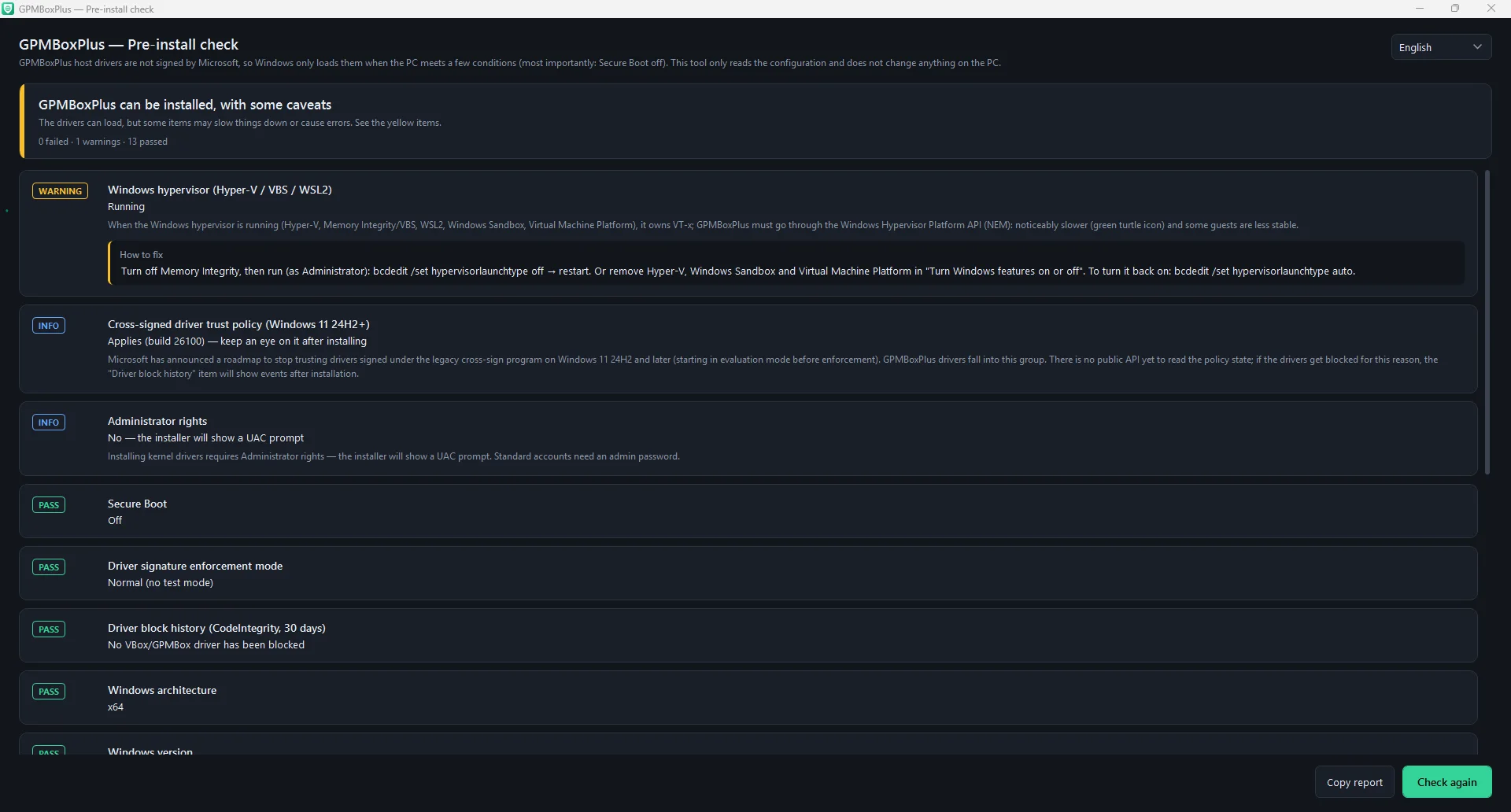
Actual Checker screen. The yellow banner shows the overall result, and the Windows hypervisor warning below explains the caveat. Note: the driver signature row here shows PASS with the value Normal (no test mode), but GPMBoxPlus still requires Test Mode to be on before your VMs can start. Check the two settings described below.
Read the results
This PC is ready for GPMBoxPlus — You can proceed with installation.
GPMBoxPlus can be installed, with some caveats — Review the yellow items. For example, if Windows is waiting for a restart, save your work, restart the PC and run the check again.
GPMBoxPlus cannot be installed on this PC yet — Review the red items and follow the How to fix guidance before checking again.
Individual checks use four labels. PASS means the PC meets the condition. INFO describes a setting. WARNING means an item deserves a closer look. FAIL means you need to address the item before installing.
What should you do about a yellow or red result?
If Windows is waiting for a restart, save your work, restart the PC and run the Checker again. You can do this before downloading the installer.
If the system drive is low on space, open Settings → System → Storage to see what is using it. A virtual machine needs room for its own copy of Windows and the files you save inside it. You can free up space or choose another drive for the virtual machine.
If Secure Boot shows FAIL, open How to fix on that row. Follow the guidance and run the Checker again after making the change. What each check means
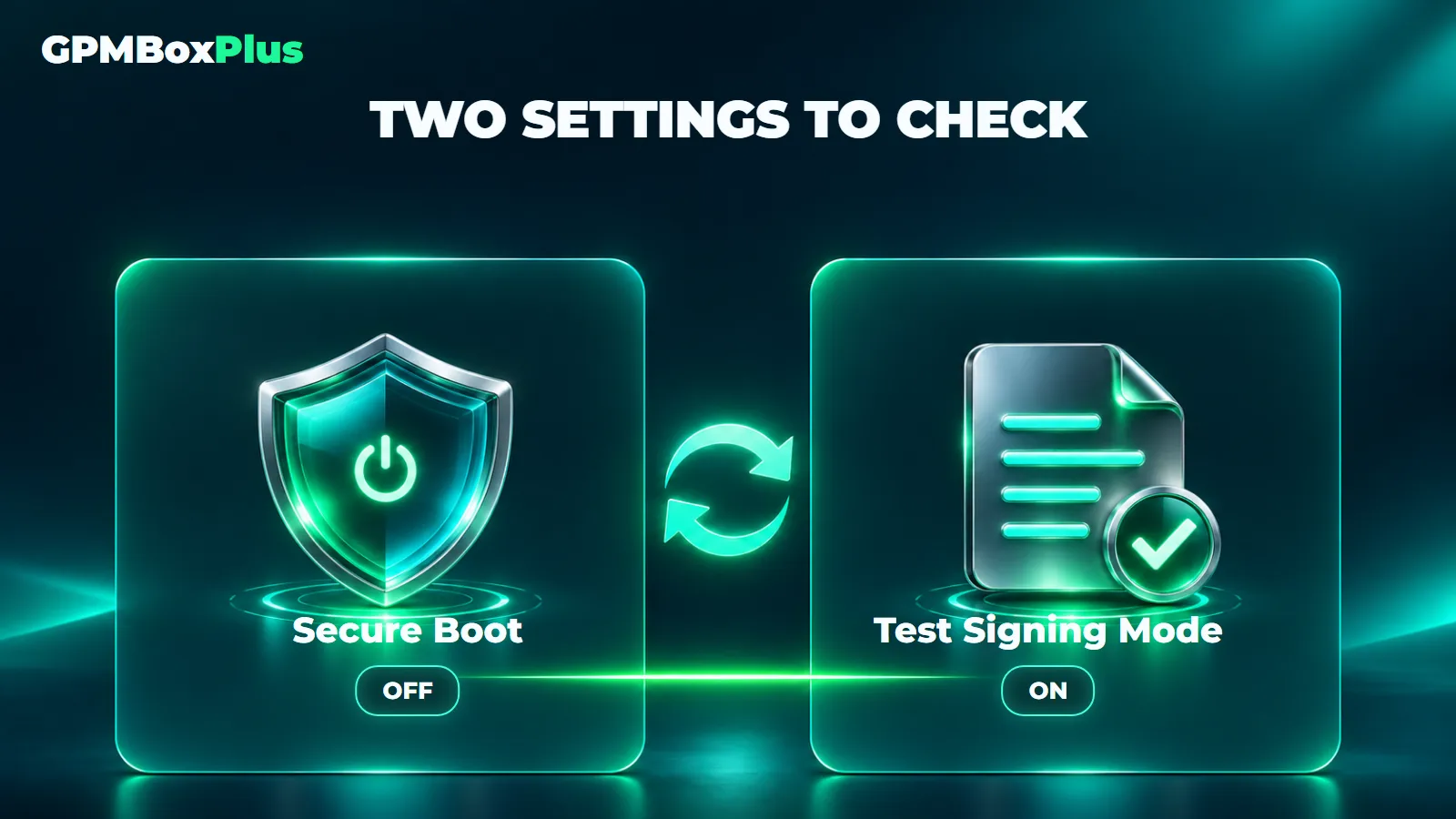
Two settings to check before installing
GPMBoxPlus requires Secure Boot to be off and Test Signing Mode to be on. Secure Boot is a security feature that runs when the PC starts. Test Signing Mode lets Windows load test-signed drivers. Drivers help GPMBoxPlus work with Windows.
For step-by-step instructions (BIOS keys by PC brand, the Test Mode command and installing the GPM certificate), see GPM Box Plus Won't Start a Virtual Machine? Turn Off Secure Boot and Enable Test Mode.
If the system drive uses BitLocker, save your recovery key and suspend BitLocker before changing Secure Boot. On a work PC, you can send the report to your IT team so they can review the settings.
Watch the GPMBoxPlus installation guide
When can you run the installer?
After resolving the relevant items, reopen the Checker and select Check again. Proceed when the tool says your PC is ready. If an item is still red and you are unsure how to resolve it, select Copy report and send the report to GPM support. Pre-Install Checker documentation